License Management
Request and install an offline license, confirm export availability, and handle renewal or computer replacement.
What you can do on this page
- Understand which functions require a license.
- Save user information and copy the displayed machine code.
- Install a license code or file.
- Review the registered user, expiration date, and status.
- Renew, remove, or troubleshoot a license.
Understand license scope
GridSubStudio uses a locally verified, time-limited license for final project subtitle Export only:
- Without a valid license, you can still create/open projects, import resources, edit and save, run quality checks, and use machine translation.
- The Export Wizard still opens for configuration and preview, but its final Export button is disabled.
- A license does not alter the project format or write data into
project.json,workspace.csv, or the project folder.
The top bar shows Trial, Licensed, or Expired. For troubleshooting, use the complete message in Settings → License.
Get a machine code
- Open Settings → License.
- Enter the name and email that should appear on the license.
- Click Save.
- When Machine Code appears, click Copy.
- Send the name, email, and complete code through the channel specified by your license provider.
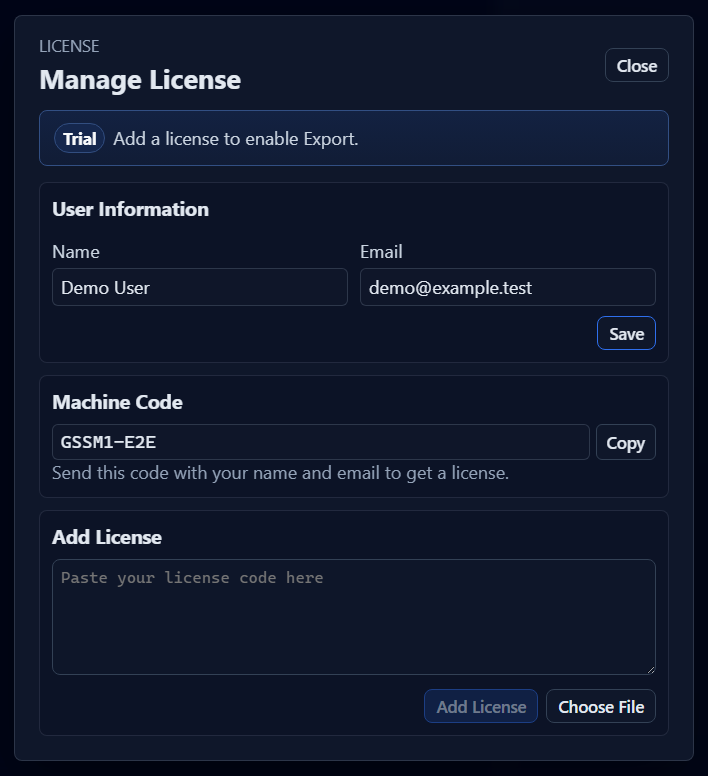
Keep the submitted name and email unchanged while the request is being processed, and do not publish the machine code.
Add a license
The provider may supply either a pasteable code or a .gss-license file. The file picker also accepts .json or .txt when they contain the same provider-supplied license document.
To use a code, paste the complete value into Add License and click Add License. To use a file, click Choose File, select the original file, and wait for validation.
Validation occurs locally and does not require an account login or license-server connection. Do not edit the code or file; use it exactly as supplied.
Confirm activation
A successful license shows Licensed, the registered name/email, and expiration date.
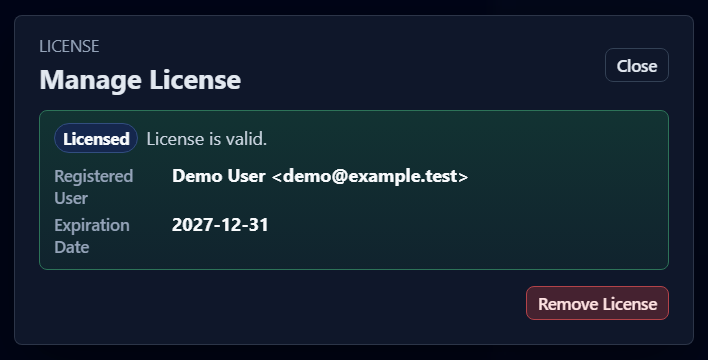
The user-information, machine-code, and add-license sections are hidden while a recognized license is installed. Close the dialog and open Export Wizard to confirm the final Export button is available.
A license also covers a maximum GridSubStudio version. If the installed app is newer than the licensed version, export is disabled even when the date has not expired; request an updated license.
Renew a license
- Note the registered user and expiration date.
- Contact the provider before expiration.
- Obtain the replacement license.
- Click Remove License to reveal the installation controls.
- Install the new code/file and confirm status again.
Removing the current license disables final subtitle export until replacement succeeds. Save the project and obtain the new license before replacing one near a delivery deadline.
Up to 24 hours of grace may follow the signed expiration time. Rely on the current status message and Export button, and do not plan delivery around the grace period.
Move to another computer
An old computer's license normally cannot be used directly on a new computer. On the new computer, open Settings → License, save the correct name/email, copy the displayed machine code, and follow the provider's process for a new license. Project files can be moved through the normal backup/migration process.
Remove a license
Remove License deletes the locally installed license and restores the request controls. It does not delete projects, subtitles, videos, exports, settings, or the original license file. It may not release a seat in the provider's system; follow the provider's process when seat recovery is required.
Protect license information
- Do not publish a complete license code, file, or machine code.
- Do not put license files in project folders, shared packages, repositories, or diagnostics attachments.
- Support usually needs the status message, app version, and expiration date. Redact codes unless a trusted private channel explicitly requires them.
- Inspect attachments before sending them.
Troubleshoot license problems
No machine code appears
Enter name/email and click Save. Reopen the dialog if necessary. If it remains empty, record the app version and visible error message.
A code or file cannot be added
Confirm the code is complete and was not truncated by chat/email. Use the original .gss-license, .json, or .txt from the provider without editing it.
Identity or machine mismatch
Confirm the provider issued the license for the current computer and submitted information. After moving computers or changing registration details, copy the currently displayed code and contact the provider.
License is expired
Check the displayed expiration date and request renewal. Editing and saving remain available after export is disabled.
Export stopped after an app update
The license may not cover the installed version. Request a license covering the current version; do not edit license data or system time.
Licensed but Export is still disabled
Reopen Export Wizard and confirm the license dialog says Licensed. Then check for exportable rows, an ASS source template, filename conflicts, and output-folder permissions. See Saving and Exporting.