Productivity Tools
Find, filter, batch-edit, and restructure subtitle rows without losing control of the active selection.
What you can do on this page
- Search and replace source or translation text.
- Combine filters and quality limits.
- Sort, resize, hide, and reset columns.
- Break, split, merge, add, or delete selected rows.
Find subtitle content
Type in the search box to find text across source and translation. Enable Filter Results to hide nonmatching rows; disable it to keep all rows visible while matches remain highlighted.
Ctrl+F (Command+F on macOS) focuses the search field. Clearing the query restores the normal result set.
Replace one or all matches
Click Adv. Search / Replace or press Ctrl+H (also usable on macOS; or click the button to avoid the system Command+H shortcut).
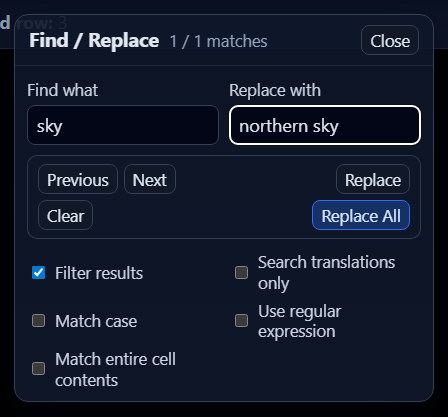
Choose whether to search translations only, match case, use a regular expression, or require a whole-cell match. Use Replace for the current match or Replace All after checking the match count. Invalid regular expressions are reported without modifying rows.
Use batch replacement rules
Open Batch Replace to maintain an ordered list of find/replacement pairs.
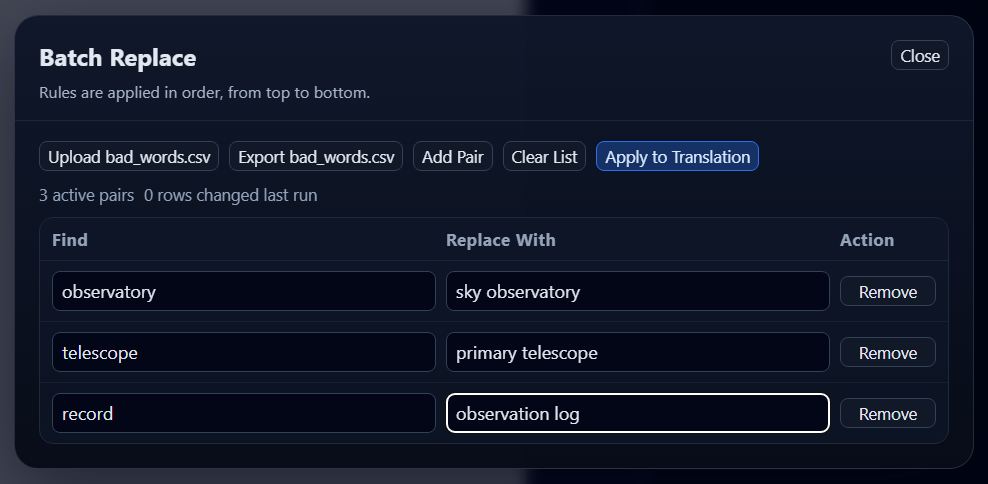
Rules run from top to bottom, so an earlier replacement can affect a later rule. Add, remove, clear, import, or export rules with bad_words.csv, then click Apply to Translation. The dialog reports active pairs and rows changed.
Filter rows that need work
Click Show Filters and combine field, operator, and value rules with AND or OR.
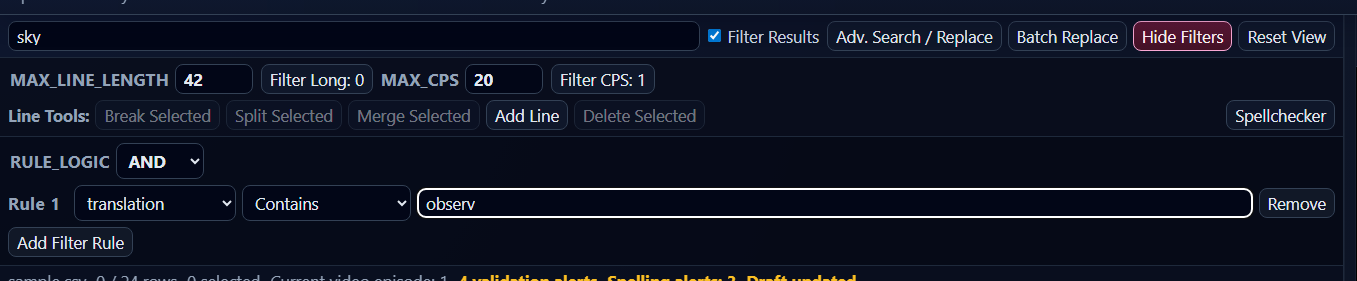
Filters can target episode, source, translation, timing, and other visible data. Long-line and high-CPS counters provide quick specialized filters. Filtered rows remain in the workspace and return when filters are cleared.
Sort and adjust the grid
Click a sortable column header to change order. Drag column boundaries to resize. Use Show Hidden Columns in Settings for metadata columns, and Reset View to restore the default layout.
Sorting changes presentation, not row timing or episode ownership. Check the current order before positional copy/paste operations.
Select multiple subtitles
Use row checkboxes, the select-all control, or a grid range. Tool labels show the number of selected rows. With filters active, select-all applies to visible rows; verify the count before destructive operations.
Break long subtitle text
Select rows and click Break Selected. The tool inserts line breaks using the project's line-length limit while preserving each subtitle as one timed row. Rows that do not need changes are reported as unchanged.
Split subtitle rows
Select rows and click Split Selected. GridSubStudio divides text into multiple rows and distributes timing across the generated rows. Review both semantic boundaries and timing afterward.
Merge subtitle rows
Select adjacent rows in the same episode and click Merge Selected. Text is joined and timing spans the selected range. Nonadjacent rows, mixed episodes, or incompatible selections are rejected; timing gaps require explicit confirmation.
Add and delete rows
Add Line inserts a new subtitle row near the current selection. Fill its episode, timing, source, and translation as needed. Delete Selected removes selected rows after confirmation and can be undone before closing the workspace.
Use the context menu and shortcuts
Right-click the grid for operations relevant to the current selection. Delete, copy/paste, undo/redo, find, replace, and playback shortcuts reduce toolbar travel. When editing a cell, text-editor shortcuts take priority.
Troubleshooting
- A tool is disabled: select the required number of compatible rows.
- Merge is rejected: make the rows adjacent, within one episode, and clear incompatible filters/order.
- Replace changed too much: undo immediately and refine case, whole-cell, translation-only, or regex options.
- Selected count is unexpected: check filters and the select-all state.