Reviewing Subtitles
Edit text and timing while keeping the grid, video, timeline, and current selection synchronized.
What you can do on this page
- Navigate and select subtitle rows and cells.
- Edit, copy, paste, and fill source or translation text.
- Play the assigned video and follow subtitle timing.
- Adjust timing safely and undo changes.
Browse and select subtitles
Click a cell to focus it. Drag across cells or use row-selection controls to select a range. The current row is reflected in the grid, timeline, and playback controls.
Use the episode selector to move between episodes. Filters may hide rows; the status summary shows visible and selected counts.
Edit source and translation text
Double-click or press Enter to edit a text cell. Confirm with Enter or click elsewhere; press Esc to cancel the active edit.
Source and translation cells are editable. Calculated fields such as character count and CPS update automatically and should not be edited directly.
For multiline subtitle text, GridSubStudio preserves real line breaks and the subtitle format's line-break representation during import/export.
Copy, paste, and fill content
Use standard Ctrl+C (Command+C on macOS), Ctrl+V (Command+V on macOS), and Delete operations. Pasting a rectangular block fills the corresponding grid range. Review the selection before a large paste, especially when filters are active.
Undo immediately if pasted data is shifted or affects unintended rows.
Play and switch video
Select a video from the video selector, then use Play, Space, Prev, and Next. Playback rate buttons change review speed without changing subtitle timing.
The active episode determines which timeline rows and video are shown. If a video is missing, subtitle editing remains available.
Use the timeline

Click or drag on the timeline to seek. Click a subtitle range to focus its row. Use the zoom buttons or slider to inspect crowded timing ranges.
Timeline focus follows the real grid selection; selecting a row should update both the row highlight and active range.
Adjust start and end times
Focus a subtitle row and click Adjust Time.
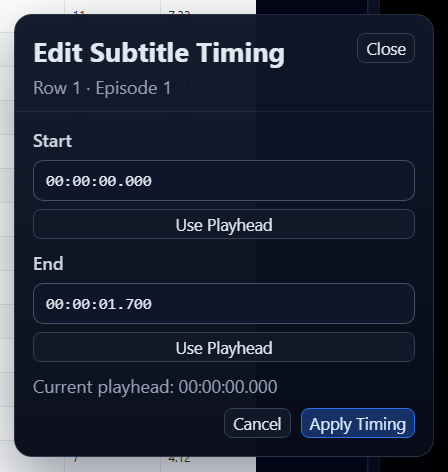
Edit start/end values or adjust the range on the timeline. GridSubStudio checks invalid ranges, ordering, and overlaps before applying. A warning requires confirmation; it does not silently change neighboring subtitles.
Navigate subtitles and episodes
Alt+Up/Alt+Down: previous or next subtitle.- Prev / Next in playback controls: move between videos where available.
- Click validation counters to jump to the next matching issue.
- Repeated navigation wraps through the applicable set.
Undo and redo
Use Ctrl+Z (Command+Z on macOS) and Ctrl+Y (Command+Y on macOS) (Ctrl+Shift+Z (Command+Shift+Z on macOS) also works for redo). Text, timing, and row operations participate in the workspace history. Saving does not erase the ability to compare the saved and current state, but reopening starts from persisted data.
Using subtitle Whole Replacement to rebuild matched episodes clears the previous undo and redo history, although unmatched episodes remain in the workspace.
Reset the workspace view
Use Reset View to restore the default column layout and panel proportions. This changes presentation only; it does not remove subtitle data.
Troubleshooting
- Selection and timeline disagree: click the intended row once, then verify the active timeline range.
- Playback controls are disabled: select a row/video and confirm the episode has an available video.
- Timing cannot be applied: correct invalid start/end values or explicitly confirm the warning.
- A paste affected the wrong rows: undo, clear filters if necessary, and repeat with a verified selection.