Getting Started
Install GridSubStudio, create or open a project, and complete a first review pass.
What you can do on this page
- Start the desktop app and create a project folder.
- Open existing projects or legacy CSV workspaces.
- Recognize the main editing areas.
- Learn the basic review workflow and essential shortcuts.
Install and start GridSubStudio
GridSubStudio provides a Windows x64 installer and a macOS Apple Silicon test build. Both use the same project and subtitle editing workflow. Choose the package for your platform. The current Mac test build requires macOS 27.0 or later; an Intel Mac package is not available. End users do not need Python, Node.js, or Rust. The manual site is documentation, not the editor.
Install on Windows
Run the .msi supplied by your distributor, then start GridSubStudio from the Start menu or application shortcut.
Install on macOS
- Download and open the Apple Silicon
.dmg. - Drag GridSubStudio.app into Applications.
- Eject the disk image and launch GridSubStudio from Applications. Its installation directory must be writable for updates.
First launch on macOS: bypass the Gatekeeper block
The current Mac test build has no Apple Developer ID signature or notarization. macOS may report an unidentified developer or that Apple cannot check the app for malicious software. After confirming the package is from a trusted distributor and has not been modified, allow this specific app:
- Try launching GridSubStudio from Applications and dismiss the block.
- Open System Settings → Privacy & Security, find the message about GridSubStudio, and select Open Anyway.
- Authenticate if requested, then select Open in the confirmation.
macOS remembers this exception. If the button is missing, try launching the app again and revisit settings; managed Macs may require an administrator. For a damaged-file warning, download again and compare the distributor's checksum. Do not treat a warning that an app will damage your computer as a routine notarization warning.
This creates an exception for GridSubStudio without disabling Gatekeeper globally. See Apple's instructions.
Keep projects in a normal writable folder. Avoid temporary download folders, read-only media, and cloud locations that are currently reporting sync conflicts.
Create a subtitle project
- Click New Project.
- Choose or create an empty project folder.
- Give the project a clear name.
- Import original subtitles, translated subtitles, and videos as available.
- Set quality limits, target language, and the spellcheck dictionary.
- Review filename-to-episode mapping, then click Confirm.
A project normally contains project.json, workspace.csv, resource folders, exports, translation backups, and a glossary. Do not move individual managed files outside the project folder.
Open an existing project
Click Open Project and choose the project folder or its project.json. GridSubStudio restores the workspace, project resources, selected episode, and relevant view state.
Only one active app instance can edit a project at a time. If the project is locked by another window, return to that window and close the project normally before reopening it.
Open and migrate a legacy CSV
Use Open CSV for a standalone workspace created by an older workflow. Legacy CSV mode supports editing, saving, Save As, and XLSX export, but project-only features require migration.
To migrate, create a project and import the CSV/subtitle resources into it. Keep the original CSV as a backup until the new project has been saved and checked.
Learn the workspace
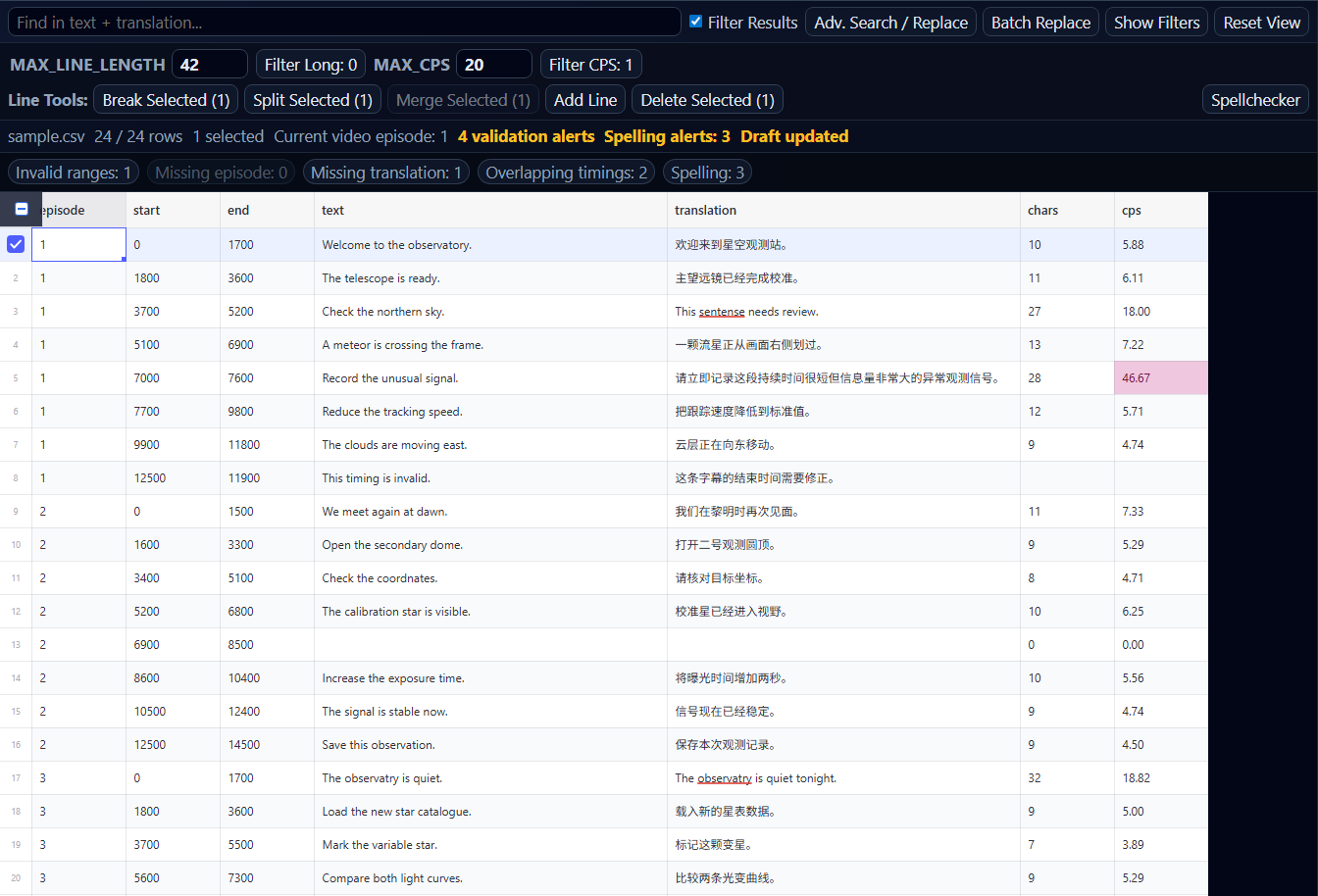
- The top bar contains project, import, save, export, machine translation, settings, and help actions.
- The subtitle grid displays source text, translation, timing, episode, and calculated quality fields.
- The video panel plays the video assigned to the current episode.
- The timeline and playback controls navigate subtitle ranges and adjust timing.
- The search, filters, line tools, and validation summary focus the rows that need work.
Drag the divider between grid and video to redistribute space. Use Reset View if the layout becomes difficult to use.
Complete a basic review pass
- Select an episode and play its video.
- Click a subtitle row to focus it.
- Edit the source or translation cell.
- Check the subtitle against video and audio.
- Adjust timing when required.
- Resolve validation and spelling alerts.
- Save with
Ctrl+Son Windows orCommand+Son macOS. - Open the export wizard and verify output settings.
View shortcuts and help
Press ? or choose Settings → Keyboard Shortcuts. Common shortcuts include:
In the table, Ctrl is the Windows modifier; use Command (⌘) on macOS. Use Command for multi-range selection and copy/cut/paste as well. Depending on keyboard settings, F7 may require Fn.
Exception: macOS reserves Command+H for hiding windows. Open Advanced Search / Replace with its button or Ctrl+H. See Apple keyboard shortcuts.
| Action | Shortcut |
|---|---|
| Save | Ctrl+S |
| Undo / Redo | Ctrl+Z / Ctrl+Y |
| Find / Replace | Ctrl+F / Ctrl+H |
| Play / Pause | Space |
| Previous / Next subtitle | Arrow Up / Arrow Down |
| Spellchecker | F7 |
| Close a floating tool | Esc |
When a cell is actively being edited, text-editing behavior takes priority over grid shortcuts.
Troubleshooting
- The app does not start: confirm the packaged desktop app was installed, rather than opening source files or the manual site.
- A project will not open: verify
project.jsonstill exists and the folder is writable. - A project is locked: close the other GridSubStudio window normally.
- The layout is cramped: reduce UI Size, enlarge the window, or drag the workspace divider.