Quality Checks
Find and resolve reading-speed, line-length, timing, completeness, and spelling problems.
What you can do on this page
- Apply project thresholds for long lines and high CPS.
- Navigate missing episodes/translations, invalid ranges, and overlaps.
- Check translation spelling with a local dictionary.
- Manage ignored words and a per-dictionary user dictionary.
Set quality thresholds
In Project Setup → Other Parameters, set Maximum CPS, Line Length, and Spellcheck Language. These values drive warnings and tools; they never rewrite subtitle content automatically.
Find long subtitles
Click the Filter Long counter to show translations over the configured line length. Shorten the translation, use Break Selected, or split the row where meaning and timing permit. Character count excludes subtitle line-break markers but preserves spaces.
Find high reading speed
Click Filter CPS to show subtitles whose translation character count is too high for their duration. Shorten the translation, safely extend timing, or split an overloaded subtitle. CPS recalculates after text or timing edits.
Check timing and completeness
The validation summary reports invalid ranges, missing episodes, missing translations, and overlapping timings.

Click a counter to jump to the next matching row. The counter navigates rather than filtering. Timing warnings are not automatic fixes; verify changes against video.
Enable spellcheck
- Open Settings.
- Enable Spellcheck translation.
- Open Dictionaries and choose an installed dictionary.
- Wait for the background scan to finish.
Spellcheck scans the translation field only. Large workspaces are processed incrementally so editing can continue. The Spellchecker is unavailable when no dictionary is installed.
Review spelling suggestions
Press F7 or click Spellchecker.
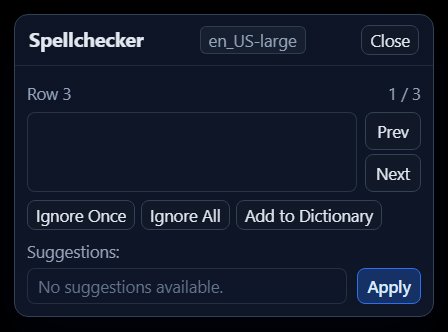
Use Previous and Next, select a suggestion, then apply it. Direct edits in the grid also update results while preserving focus where possible.
Ignore spelling alerts
- Ignore Once removes only the current occurrence.
- Ignore All ignores that word throughout the current workspace.
- Add to Dictionary adds a correct name or specialist term to the active dictionary's user dictionary.
These actions update spelling statistics without changing the active row filter.
Install and switch spelling dictionaries
GridSubStudio reads Hunspell-format dictionaries but does not bundle, download, or recommend a particular dictionary. Obtain one from a trusted source and check its license.
Understand the Hunspell files
A dictionary requires a matching pair:
.diccontains words and optional rule flags. Its first line is commonly a word count..affdeclares encoding, prefixes/suffixes, replacements, and suggestion rules.
Both files must come from the same dictionary package. Downloads often contain names such as en_US.aff and en_US.dic; inside GridSubStudio's dictionary folder, rename the pair to index.aff and index.dic. Do not mix languages or resave the files with a text editor unless you understand the format and encoding.
Install the files
- Open Settings → Dictionaries → Open Folder.
- Fully extract downloaded archives.
- Create one direct subfolder per dictionary, such as
en_USorde_DE. - Place the matching files inside as
index.affandindex.dic. - Optionally keep
LICENSE,COPYING, orREADMEbeside them. - Return to GridSubStudio and click Refresh.
- Click the dictionary name to mark it Active.
dictionary folder/
  en_US/
    index.aff
    index.dic
    LICENSE          (optional)
  de_DE/
    index.aff
    index.dic
Loose files at the root, archives, nested extra folders, or files left as en_US.aff/en_US.dic are not detected.
Switch and verify a dictionary
Only direct subfolders containing both required filenames appear in the installed list.
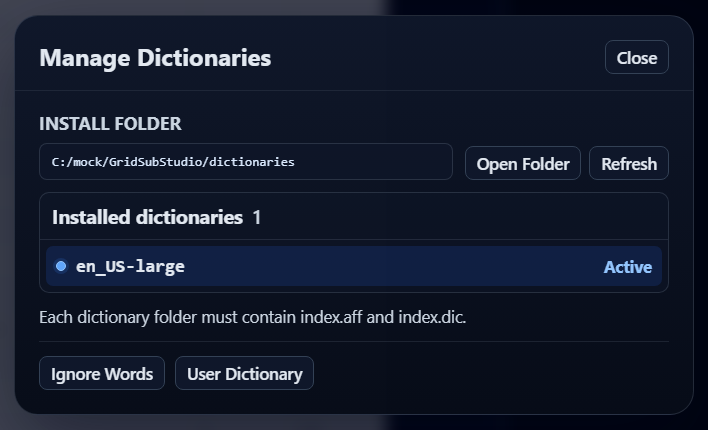
Close Dictionary Manager to trigger a full recheck. Test with a known misspelling. GridSubStudio uses a local Hunspell-compatible engine; complex morphology or suggestions may differ from LibreOffice, Firefox, Hunspell, or Nuspell. It does not map a short ID such as en to a regional dictionary or fall back silently when the selected dictionary disappears.
Manage ignored words and user words
Ignore Words belongs to the current CSV/project workspace. User Dictionary belongs to the active dictionary and is shared across projects. Changes made in nested managers are applied when the outer Dictionary Manager closes, triggering one consolidated recheck.
Troubleshooting
- Dictionary not listed: extract it into a direct subfolder with exact
index.affandindex.dicnames. - Dictionary fails to load: restore both files from the same original package and preserve their encoding.
- Results did not update: close nested word managers, then close Dictionary Manager.
- No suggestion: edit manually, ignore once, or add a verified word to the user dictionary.
- Results differ from another app: verify dictionary version and region, then test representative subtitle text.