Machine Translation
Configure reusable translation providers and prompts, run selected episodes, and review results before applying them.
What you can do on this page
- Create and test provider presets.
- Manage reusable prompts and project glossary terms.
- Choose episode ranges, reasoning, temperature, and concurrency.
- Review failures and translation conflicts without overwriting work silently.
Configure a translation provider
Open Machine Translation → Manage Providers. Create a preset with a name, Base URL, API key, model, and supported capabilities. Configure proxy or network options only when required by the service.
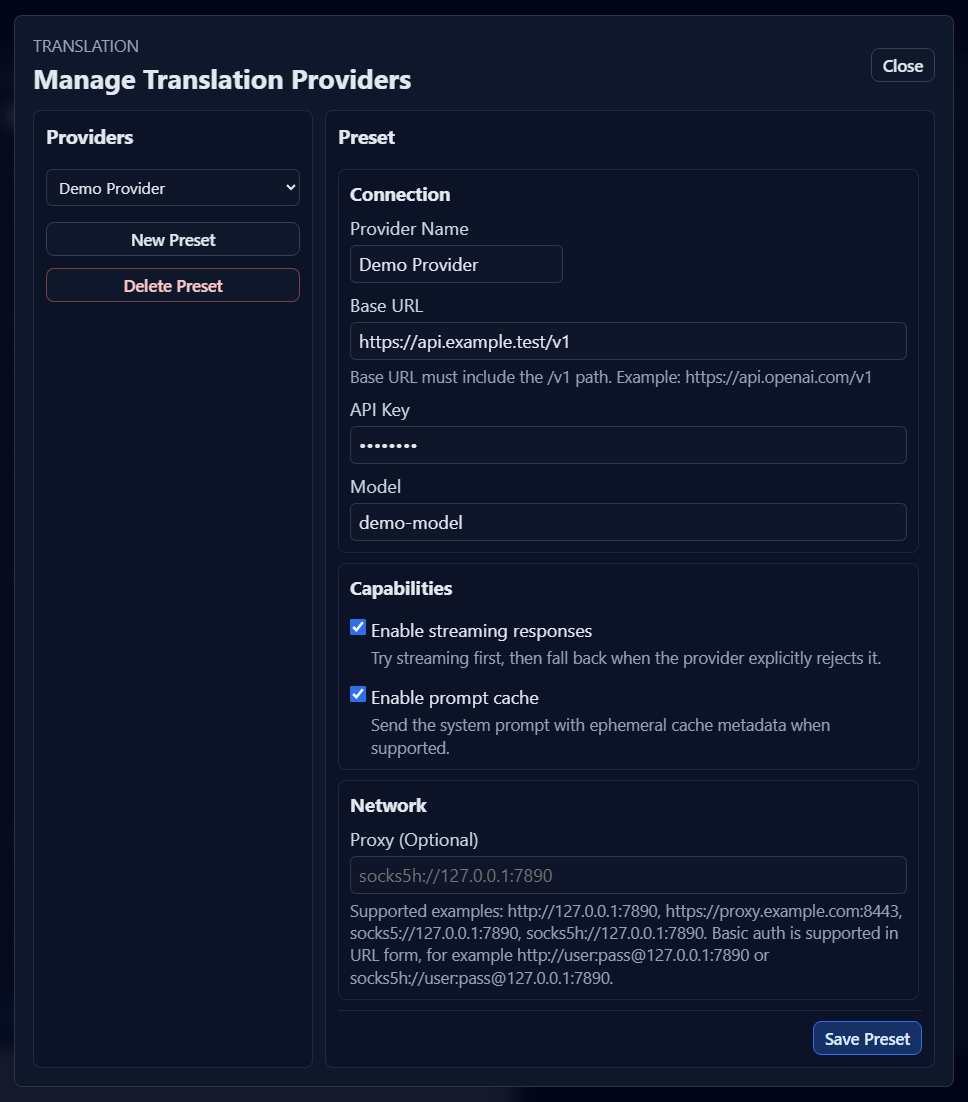
Use provider credentials supplied for your own account. Do not place real API keys in project folders, screenshots, diagnostics, or shared documentation. Save the preset, return to the panel, and select it.
Custom request parameters and headers
The Request Options card sits between Capabilities and Network. It contains two multiline YAML fields, Extra Parameters (YAML format, optional) and Extra Headers (YAML format, optional), with the explanatory text at the bottom inside the card.
Gray placeholder text is only an example; it is never saved or sent. Adapt the examples to your provider documentation and actual needs, or leave the fields empty. Incorrect settings or unsupported parameters may cause translation failures.
Extra parameters and reasoning priority
Extra parameters are added directly to the request body and support nested objects. For example:
reasoning_effort: highThe Reasoning selection in the Machine Translation panel determines the final reasoning_effort value:
| Panel Reasoning | YAML configuration | Sent to the provider |
|---|---|---|
| Default | reasoning_effort: high | reasoning_effort: high |
| Low | reasoning_effort: high | reasoning_effort: low |
| None | reasoning_effort: high | reasoning_effort: none |
| Default | No reasoning_effort | Parameter omitted; provider default applies |
This priority rule applies only to reasoning_effort. Other YAML parameters, such as thinking and reasoning, do not change with the panel selection. Consult your provider documentation for supported combinations. Force skip reasoning independently controls the assistant prefill message and is unaffected by request options.
Extra headers, storage and protection
Header names and values must be strings, for example:
X-Custom-Feature: "enabled"Save Preset stores both YAML fields with the other global translation settings. Reopen the manager and select the preset to read them. Import/export preserves the original text, comments and line breaks. Custom headers are stored and exported in plaintext; existing multi-window conflict handling still applies.
Application-controlled fields, including model, messages, temperature, streaming, authorization and HTTP transport controls, cannot be overridden here. Invalid configuration blocks saving or sending a request. Providers may still reject unsupported fields or combinations that pass application validation.
Use a single YAML mapping without tags, anchors or aliases. Each field is limited to 64 KiB and 20 nesting levels.
Manage translation prompts
Open Manage Prompts to store reusable instructions. A prompt may define tone, terminology, output restrictions, and context handling. Prompts are application-level presets; the project remembers the most recently selected preset. Choose No custom prompt to use only the built-in translation rules, without adding the global default custom prompt. This choice is saved with the project. A new project inherits the global default prompt preset, if one exists, until you make a selection.
If shared provider/prompt settings change in another window, choose whether to reload the external version or overwrite it with your current edits.
Set the translation scope
Enter all, a single episode, ranges, spaces, or commas, for example:
all
1
1 3
1-3,8
The panel shows how many episodes are available. Invalid or missing episodes are rejected before a request is sent.
Adjust translation options
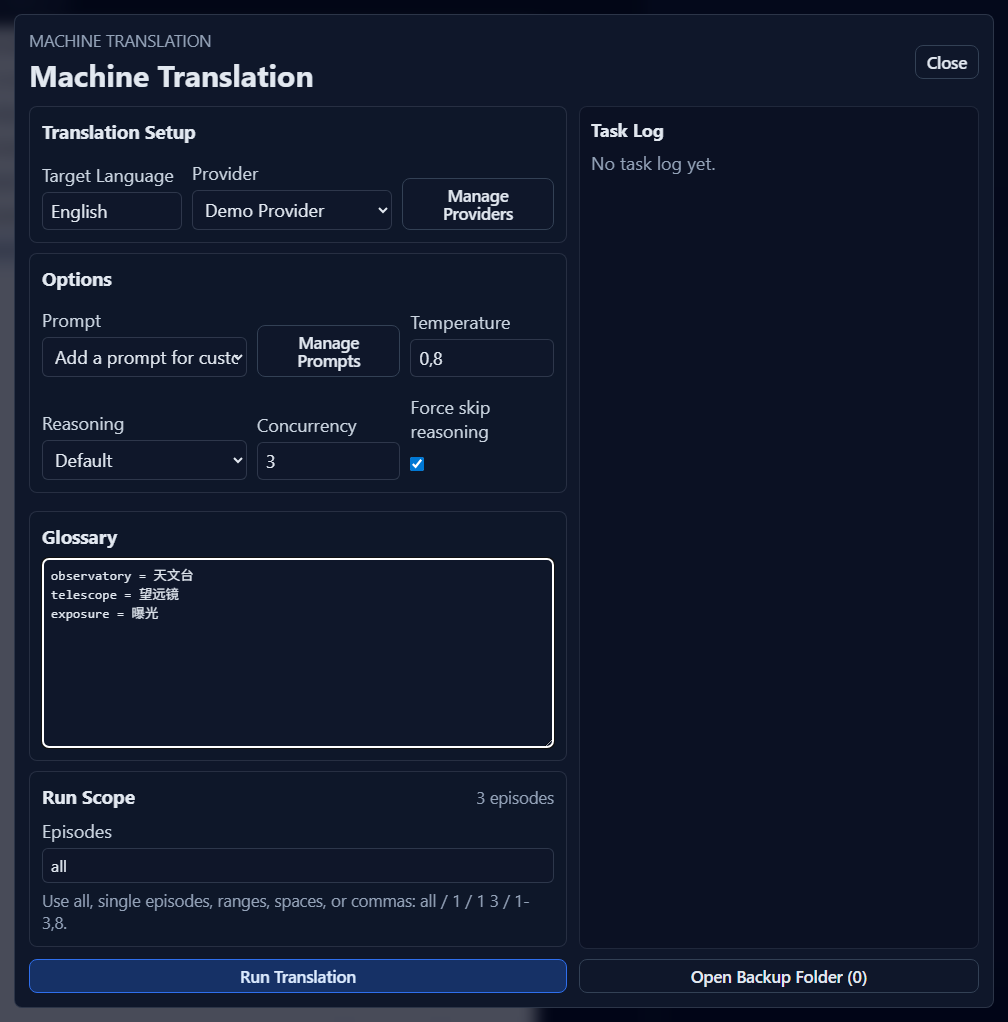
- Target Language comes from project settings and can be adjusted for the task.
- Prompt adds reusable instructions.
- Temperature controls variation where supported.
- Reasoning sends the explicit panel choice as
reasoning_effort. Default uses the provider YAML value if present, otherwise omits the field. Provider/model support varies. - Concurrency controls parallel requests; reduce it when the service rate-limits.
- Force skip reasoning (Experimental) is off by default. It forces an assistant-role prefill message to try to skip reasoning. Unsupported models may produce unexpected results; enabling it is generally not recommended. Hover over the option for details. Existing saved choices are preserved, independently of provider YAML options.
- Glossary uses one
source = targetterm per line.
Run and cancel translation
Click Run Translation. The task log shows progress, failures, and cancellation. You can cancel an active job; completed responses are still preserved for review/backup where applicable.
GridSubStudio sends only the subtitle/context required by the task to the configured service. Review your provider's privacy and retention policy before processing sensitive material.
Handle translation failures
Failures remain visible by row or request. Common causes include invalid credentials, an incorrect Base URL/model, unsupported options, timeouts, proxy errors, rate limits, and invalid episode scope. Correct the cause and rerun only the needed episodes.
Review and apply translations
Existing translations are never silently replaced. When generated text conflicts with current text, the review dialog groups rows by episode.
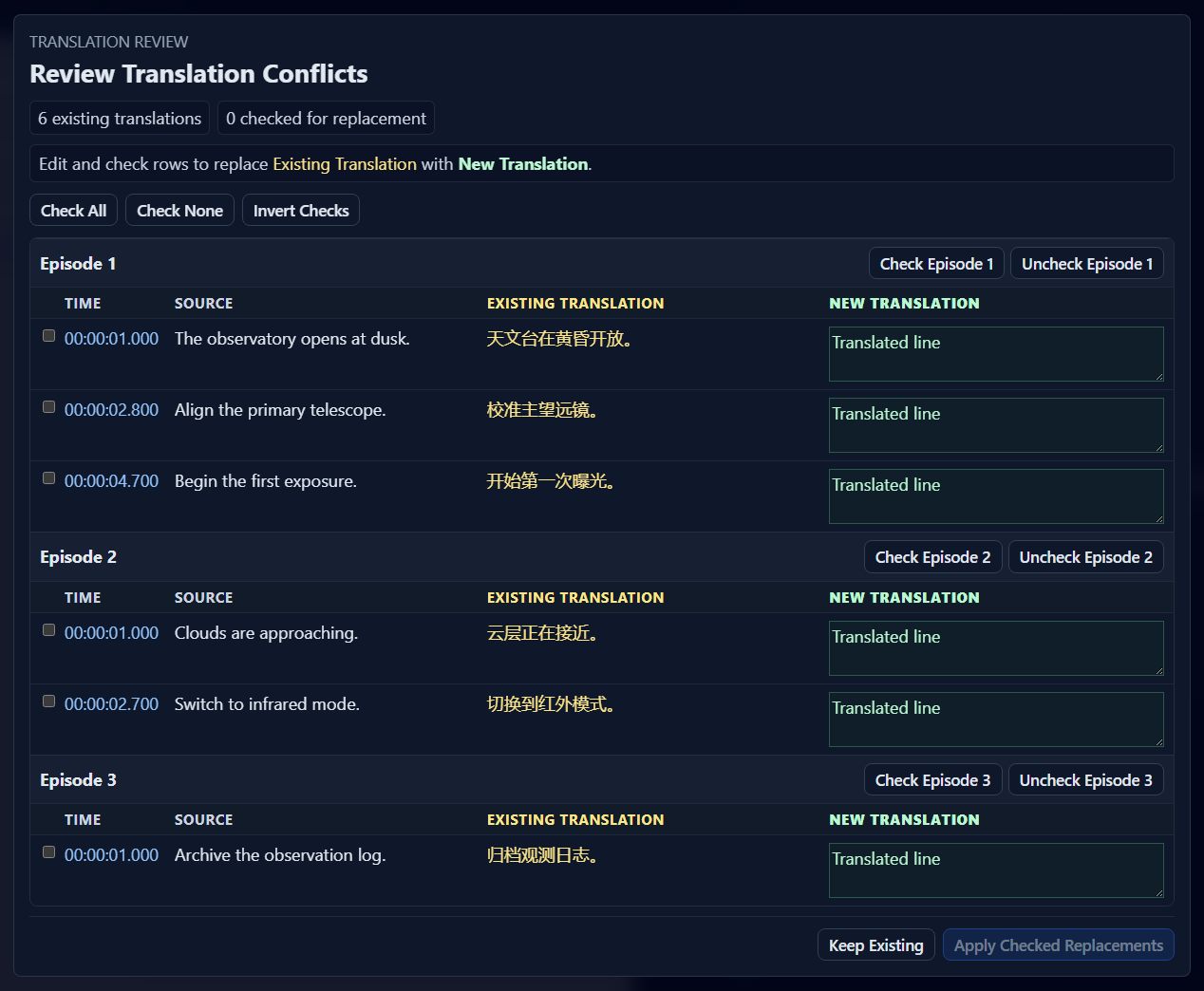
- Compare source, existing translation, and new translation.
- Check individual rows or an entire episode.
- Edit generated text when necessary.
- Click Apply Checked Replacements, or Keep Existing to apply none.
Unchecked rows retain their existing translations. Save the project after applying reviewed changes.
Open translation backups
Click Open Backup Folder to inspect stored task results. Backups help recover or audit generated text but do not replace normal project saves. Keep them with appropriate access controls because they may contain subtitle content.
Troubleshooting
- Run Translation is disabled: use project mode, import subtitles, select an enabled provider, and enter a valid scope.
- All requests fail: verify Base URL, API key, model, proxy, and provider availability.
- Only some rows fail: inspect the task log and rerun the affected episodes after correction.
- No conflict dialog appears: there may be no generated rows or no existing translations to replace.