Settings and Help
Adjust the interface, manage shared tools, update the app, and troubleshoot common problems.
What you can do on this page
- Change UI language, font, text size, and overall scale.
- Show hidden columns and manage spelling/translation presets.
- Check for updates, open license management, and clear caches.
- View shortcuts, versions, third-party notices, and diagnostics.
Switch the interface language
Open Settings → UI Language and choose English or 中文. The preference is stored locally and restored at the next launch. Missing localized text may fall back to English; internal translation keys should not appear in a normal UI.
Adjust fonts and size
- Editor Font changes grid text.
- Grid Font Size changes subtitle-cell text, with a 12px minimum.
- UI Size scales the whole interface from 50% to 150% in 5% steps.
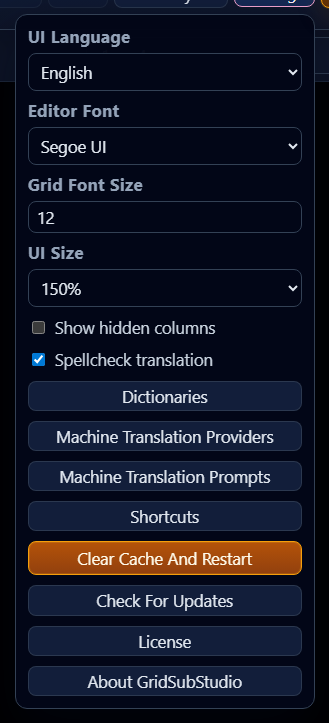
For a small window or high-DPI screen, lower UI Size or drag the grid/video divider. 960×600 is the recommended minimum for the full editing experience; 840×480 keeps core controls reachable for emergency use.
Show or hide grid columns
Enable Show Hidden Columns to display metadata columns. Turning it off changes visibility only and does not delete data. Reset View restores column widths and layout.
Manage spellcheck
Use Spellcheck translation to enable/disable scanning. Open Dictionaries to install, refresh, and select Hunspell-format dictionaries, ignored words, and user words. See Quality Checks.
Manage machine-translation presets
Machine Translation Providers manages connections, models, capabilities, and network settings. Machine Translation Prompts manages reusable translation guidance. See Machine Translation.
Check and install updates
Windows and macOS have separate release channels and may have different latest versions. The app receives updates for its own system and architecture. Save projects before installing. Full cross-version upgrades for the Mac test build are still undergoing validation; if an update fails, download the appropriate installer from your distributor.
Click Check for Updates. If an update is available, review the old/new version, choose Later or Install Update, and wait for download/install progress. The app restarts after successful installation. A manual failure displays an error; keep the current version and project files intact while troubleshooting.
Open license management
Choose Settings → License to view status, request a license, or remove one. See License Management for the full workflow.
Clear caches and restart
Clear Cache and Restart asks for confirmation and warns again when unsaved changes exist. It clears app-owned UI/session caches and stored file-handle information, then reloads. It does not delete project.json, workspace.csv, project drafts on disk, or project folders. Save important work first.
View keyboard shortcuts
Choose Keyboard Shortcuts or press ?. The dialog groups editing, grid, and video commands. See Getting Started for a quick table.
View version and third-party notices
Open About GridSubStudio to see the app version, runtime summary, third-party components/licenses, and temporary diagnostics controls.
Enable and export temporary diagnostics
- Open About GridSubStudio.
- Enable temporary diagnostics.
- Reproduce the focus, selection, playback, or scrolling issue.
- Click Export diagnostics.

Diagnostics keep a limited in-memory state trace for the current workspace and do not record subtitle text. They clear when the workspace changes, closes, or diagnostics are disabled.
Troubleshoot common problems
macOS blocks the first launch
The Mac test build is not notarized. Follow the Gatekeeper exception steps for this app. An exception does not fix an unsupported OS or architecture; check installation requirements first.
Project Setup cannot be confirmed
Wait for imports, then resolve missing episodes, normalized duplicate episodes, missing resources, ambiguous matches, and import errors. Low confidence alone requires review but does not block confirmation.
Project is open in another window
One project cannot be edited by two active instances. Close it normally in the original window. Different projects may be open in separate windows.
Video is missing
Subtitle editing remains available. Reopen Project Setup, import the video, and correct episode mapping.
Spellcheck is unavailable
Confirm a direct dictionary subfolder contains matching index.aff and index.dic, click Refresh, and select it. See the dictionary installation guide.
Machine translation cannot run
Use project mode, import subtitles, enable a provider, enter a valid episode scope, and verify Base URL, API key, model, and proxy.
Subtitles cannot be exported
Check license status, available rows, ASS template, filename conflicts, and output-folder permissions. See License troubleshooting.
Update failed
Check network access and retry manually. Keep the installed version and project files; record the error and export diagnostics when support requests them.