Saving and Exporting
Protect work in progress, review unsaved changes, re-import safely, and produce delivery files.
What you can do on this page
- Save a project or legacy CSV workspace.
- Compare current rows with the saved version.
- Recover drafts and review subtitle re-import alignment.
- Export XLSX, SRT, or styled ASS files.
Save a project
Use Ctrl+S (Command+S on macOS) or Save. Project mode writes the managed workspace and project metadata in the project folder. A successful save clears the draft warning; save before changing resources, replacing a license, updating, or closing the app.
Do not edit workspace.csv externally while the project is open. Concurrent external changes can produce a conflict that must be resolved explicitly.
Review unsaved changes
Click the draft/unsaved-diff indicator to compare the last saved version with current rows.
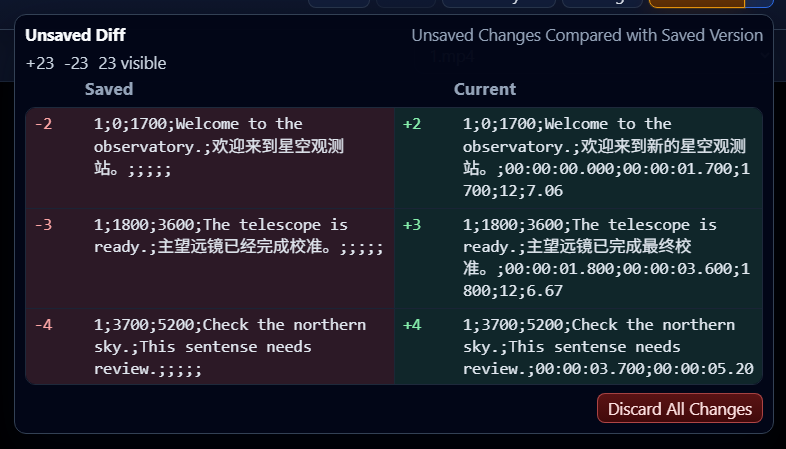
The view summarizes visible changed rows and line-level differences. It is a review tool, not an alternative save format.
Recover unsaved work
GridSubStudio maintains project drafts to help recover after an unexpected close. When recovery is offered, compare the draft timestamp and content before restoring. Save formally after confirming recovery.
Draft recovery does not replace backups and should not be treated as the only copy of important work.
Re-import subtitles
In Project Setup → Import, choose Import Original or Import Translation. The mode dialog explains the two choices:
- Precise Update aligns old and new rows in the imported episodes and preserves compatible content from the other subtitle track.
- Whole Replacement rebuilds each episode matched by this import without alignment. Old rows, edits, and other-track content in those episodes are removed, while episodes not matched by this import stay unchanged.
GridSubStudio opens an alignment review only for Precise Update when imported rows do not align exactly.
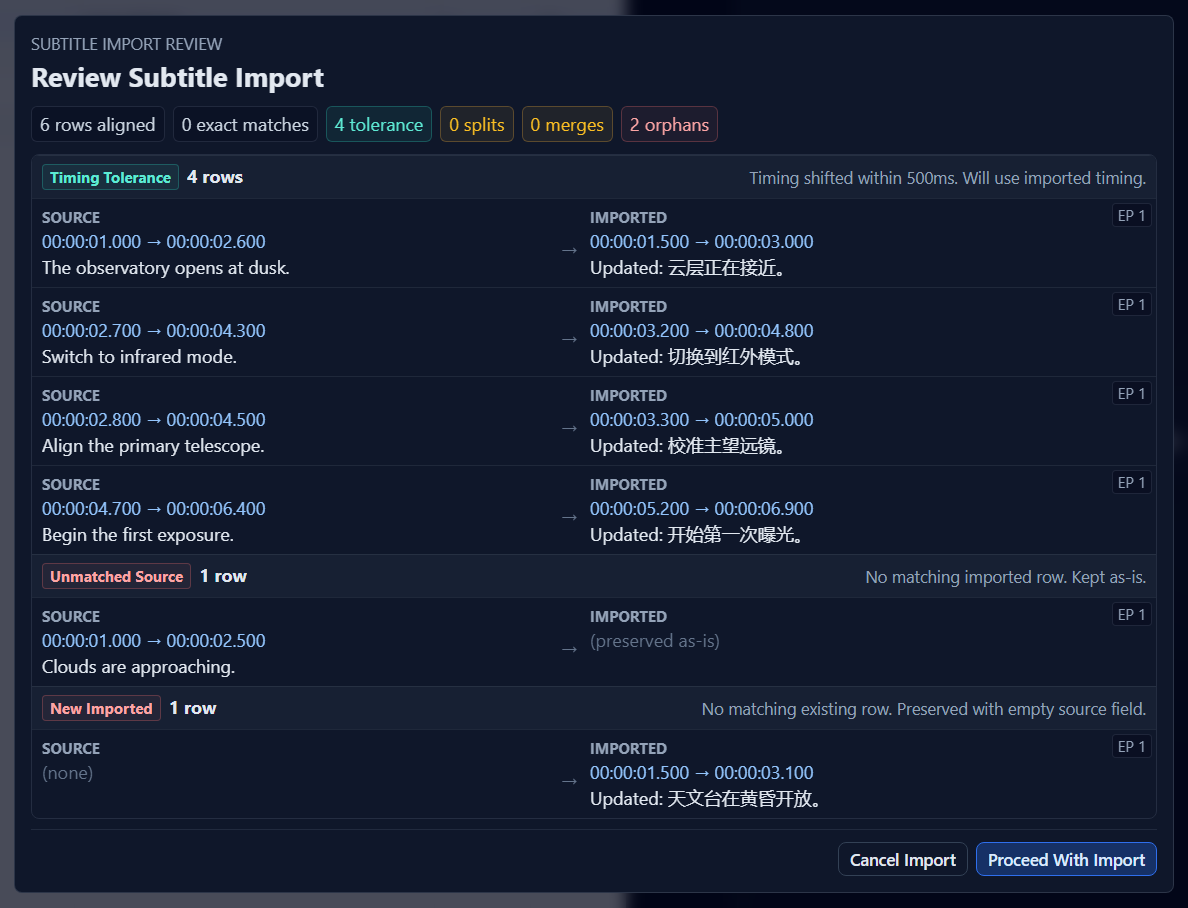
Review exact matches, tolerated timing shifts, splits, merges, unmatched source rows, and new imported rows. Continue Import applies the displayed plan; Cancel Import leaves the current workspace unchanged.
Subtitle Whole Replacement clears the existing undo and redo history. Save the project before using it when you may need to recover the replaced episode contents.
Save a legacy CSV
In legacy CSV mode, Save updates the current CSV and Save As creates another file. Preserve the semicolon-delimited schema and required columns. Project-only resource and subtitle export workflows are not available until migration.
Export XLSX
Use XLSX export to create a review workbook from the current workspace. Confirm filters and row scope before export. XLSX is a delivery/review artifact; continue editing the project or CSV as the source of truth.
Export SRT or ASS
Click Export to open the wizard.
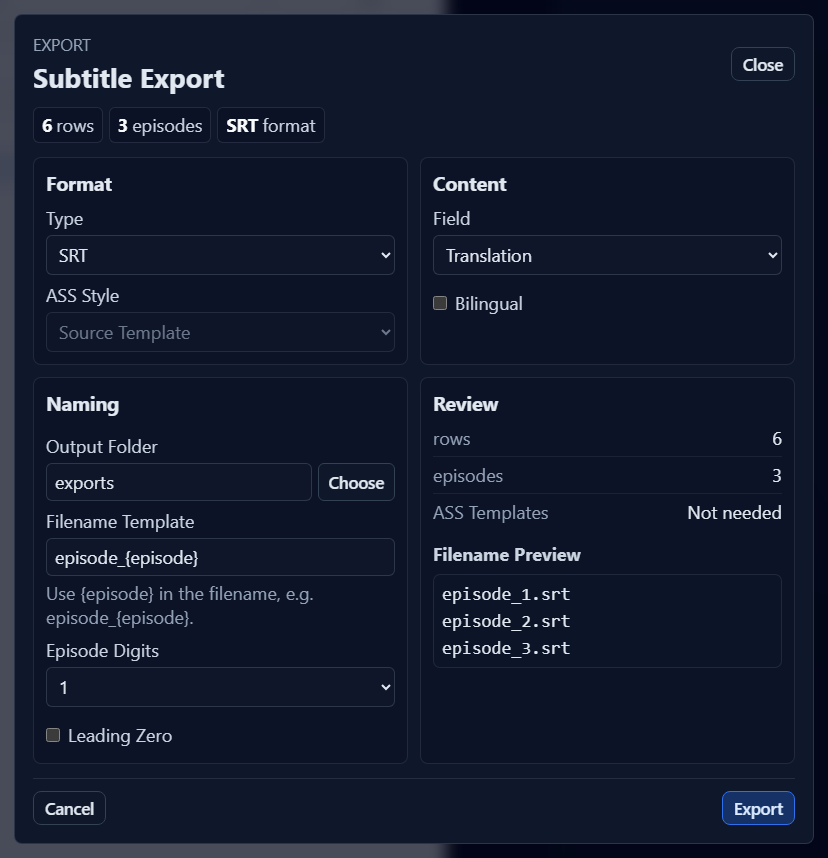
- Choose SRT or ASS.
- Choose source, translation, or bilingual content.
- Select the output folder.
- Set the filename template and episode padding.
- Review row/episode counts and filename preview.
- Click Export.
Configure ASS styles
ASS export requires a style/template source. Use the imported ASS/SSA source template when available, choose another valid template, or select the minimal style option if offered. SRT has no ASS style requirement.
Review dialogue styles, line breaks, and event metadata in a subtitle player after export.
Configure content and filenames
- Field selects source or translation.
- Bilingual combines both fields in each subtitle event.
- The filename template must include
{episode}for multi-episode output. - Episode Digits / Leading Zero: enter a digit count from 1 to 4; new projects default to 2. Enable Leading Zero to produce values such as
01or001. Existing projects retain their saved digit count. - The preview exposes duplicate filenames before writing.
Existing files may require overwrite confirmation. Never rely on the preview alone; inspect exported files before delivery.
Handle export restrictions
Project subtitle export requires a valid license. Without one, the wizard can still open and show settings, but the final Export button is disabled. See License Management.
Troubleshooting
- Export is disabled: verify license status, application version coverage, and the current computer's license.
- ASS template is required: import an ASS/SSA source or select a valid style source.
- Filenames conflict: include
{episode}or change padding/template. - Output cannot be written: choose a writable folder and close files held by another application.
- Rows are missing: clear unintended filters and verify episode scope/content selection.