Importing Resources
Build a reliable project by importing subtitles and videos, then confirming every episode assignment.
What you can do on this page
- Create the project folder and import source/translation subtitles.
- Import videos and map filenames to episodes.
- Correct missing, duplicate, or ambiguous episode assignments.
- Set project-wide quality and translation parameters.
Create a project folder
Choose New Project, then select or create the folder that will own the project. Use a stable writable location. GridSubStudio creates its managed structure inside this folder; avoid manually renaming managed files while the project is open.
Import original subtitles
In Project Setup → Import, choose Import Original and select supported ASS, SSA, or SRT files. The imported text populates the source column. ASS/SSA files also retain template information needed for styled ASS export.
Import translated subtitles
Choose Import Translation when translation files already exist. Translation imports are aligned with source rows by episode, timing, and content. When imported rows differ from existing rows, GridSubStudio opens a review step instead of silently overwriting work.
Do not mix Whole Replacement and Precise Update in one subtitle import batch. Finish or cancel the current batch before changing modes.
Import videos
Choose Import Videos and select files or a folder. Videos are referenced as project resources; importing them does not embed the media into workspace.csv.
Each episode should resolve to one video. Missing videos do not prevent subtitle editing, but video playback and timing review will be unavailable for that episode.
Review and correct episodes
Open Subtitle Filename Mapping after importing subtitles.
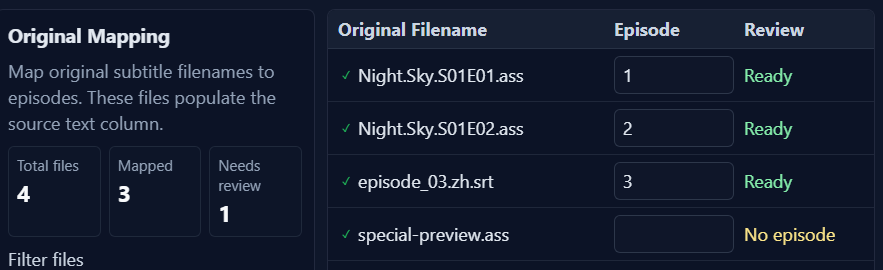
- Review the episode detected from each filename.
- Edit an empty or incorrect episode cell directly.
- Resolve duplicate episode assignments.
- Check files marked Needs review or No episode.
Then open Video Filename Mapping and perform the same checks.
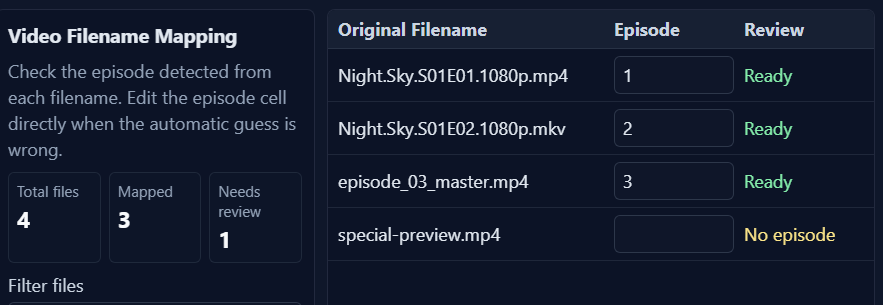
A low-confidence match is a review warning, not a final blocker by itself. Missing episodes, conflicts, unresolved resources, or import errors must be corrected before confirmation.
Handle unrecognized or duplicate files
- Rename ambiguous files before import when practical.
- Enter the episode manually when filename detection is wrong.
- Remove accidental duplicate selections rather than assigning two source files to the same episode.
- When several video candidates are shown, select the correct match explicitly.
Episode values are normalized: values such as 4, 04, and 004 represent the same episode and can conflict.
Set project parameters
Open Other Parameters to set:
- Maximum CPS for reading-speed alerts.
- Line length used by long-line checks and line breaking.
- Target language for machine translation.
- Spellcheck language, chosen from installed dictionaries.
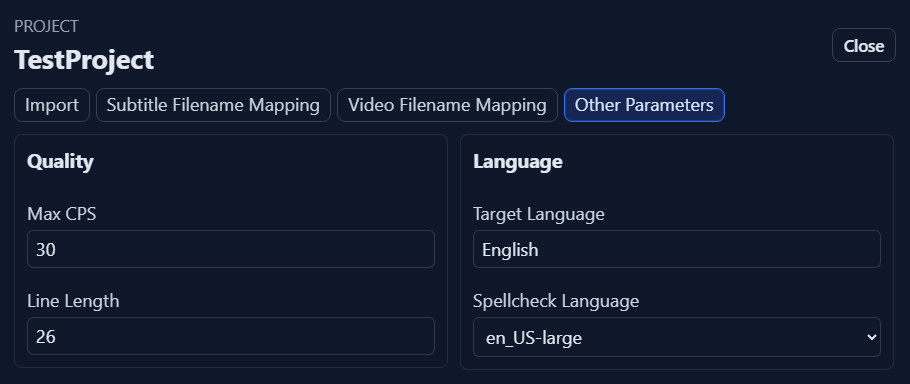
These settings control warnings and tools; they do not automatically rewrite subtitle text.
Confirm the import
Before clicking Confirm, verify import counts, source/translation roles, episode assignments, video coverage, and project parameters.
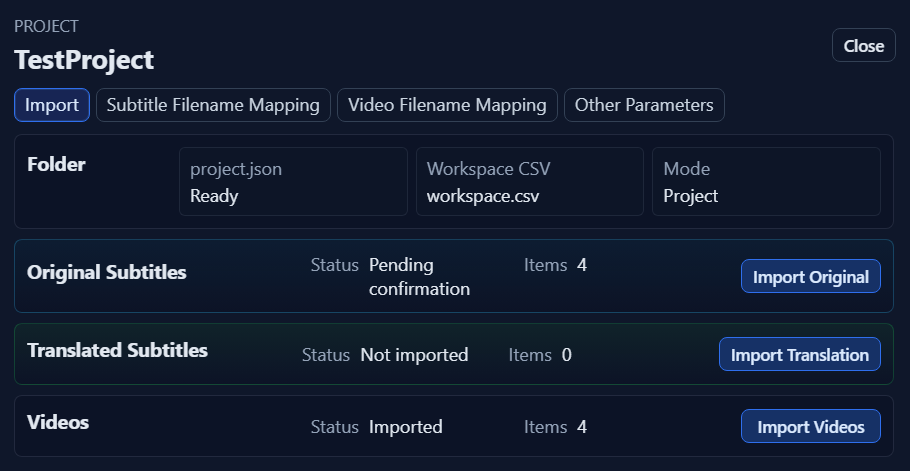
After confirmation, save the project and inspect several rows from each episode.
Add or replace project resources
Open Project Setup again to import more source subtitles, translated subtitles, or videos. When re-importing subtitles, GridSubStudio asks you to choose Precise Update or Whole Replacement, with a short explanation of each mode in the dialog. Video re-import has no mode choice: after you select files, GridSubStudio updates videos for the corresponding episodes and keeps videos for all other episodes.
Subtitle Precise Update is intended for adding episodes or revising selected episodes. “Matching” uses the final episode assignments in Subtitle Filename Mapping; it is not a simple filename comparison.
- Existing episodes included in the import are updated, while episodes not included in the import remain unchanged.
- If the import contains an episode that is not yet in the project, that episode is added; an old episode does not have to exist first.
- When updating source subtitles, the imported source text and row structure become authoritative for those episodes. Existing translations are retained where timing and text can be aligned.
- When updating translated subtitles, the imported translation becomes authoritative for those episodes. Existing source text is retained where timing can be aligned.
Subtitle Whole Replacement means replacing each matched episode as a whole. It uses the same scope as Precise Update: both follow the confirmed episode mappings and leave all episodes not matched by this import unchanged.
- For every matched episode, GridSubStudio removes all old rows and registered subtitle sources for that episode, then rebuilds it from the new file. It does not align old and new rows or preserve orphan rows or content from the other subtitle track in that episode.
- For example, if only new Episode 2 source subtitles are imported with Whole Replacement, the old source text, translations, and edits in Episode 2 are replaced, while Episodes 1 and 3 remain unchanged.
- An episode not already in the project is added when the new file is mapped to it.
Video re-import follows the confirmed Video Filename Mapping. A new video replaces the old video for the same episode, a newly mapped episode is added, and videos for episodes not matched by this import remain unchanged.
These operations do not delete the original subtitle or video files on disk. Subtitle Whole Replacement clears the existing undo and redo history, so save the project and keep a recoverable copy first.
Subtitle Precise Update does not overwrite rows by row number. GridSubStudio checks exact matches, timing tolerance, splits, merges, and orphan rows within the imported episodes, and opens an alignment review when necessary. After confirming the review, return to Project Setup, verify the mappings, and click Confirm to apply the import batch. See Saving and Exporting for the full review workflow. A pending subtitle batch cannot mix Precise Update and Whole Replacement; finish or cancel the current batch before changing modes.
After re-importing subtitles or videos, the mapping workbench continues to list existing files not affected by the import alongside newly added or replaced files. Review the complete episode coverage before confirming. Editing a pending subtitle updates the current import plan, while editing an existing subtitle or video updates that saved project resource.
Troubleshooting
- Confirm is disabled: wait for imports to finish and resolve missing episodes, conflicts, missing resources, or import errors.
- The wrong episode was detected: edit the episode in the mapping workbench.
- A video is missing: re-import it and correct the video mapping.
- ASS export later has no styles: import an ASS/SSA source template or select a valid style source during export.